

In the fast-paced environment of modern business, clear and detailed communication is paramount. Within Microsoft Dynamics 365 Business Central, the Work Description field on sales documents serves as a vital tool for this purpose. Introduced initially in Dynamics NAV 2017, this feature allows users to add extensive, multiline descriptions, special instructions, or critical context to documents like Sales Quotes, Sales Orders, and even Posted Sales Invoices.
Whether it's providing specific dispatch notes for the logistics team, detailed production requirements for manufacturing, or enhanced clarity for customer-facing documents, the Work Description field is indispensable for a seamless inter-departmental workflow.
However, many users encounter a significant and frustrating roadblock when they attempt to extract this valuable information. When using standard, out-of-the-box features like "Open in Excel" or exporting data via a Configuration Package, the content of the Work Description field is mysteriously replaced by a single asterisk (*). This common issue leaves users unable to analyze, report on, or share the detailed notes they have meticulously entered from either their active sales orders or their historical posted invoices.
This guide provides the definitive solution to export work description to excel in business central this long-standing challenge. It will walk through every available method for successfully exporting the Work Description field to Excel, from the latest no-code solution available in modern versions of Business Central to robust custom code solutions required for older systems or specialized programmatic needs. The analysis will clarify that this issue is not a user error but a result of the system's underlying data architecture—a challenge that now has clear and effective solutions for every type of user.
Table of Contents
Why Standard Exports Fail: Understanding the Blob Data Type
To solve the export problem, it is first necessary to understand its technical root cause. The reason standard export tools fail is that the Work Description field is not a simple text field. Instead, its data type is a Blob, which stands for Binary Large Object.
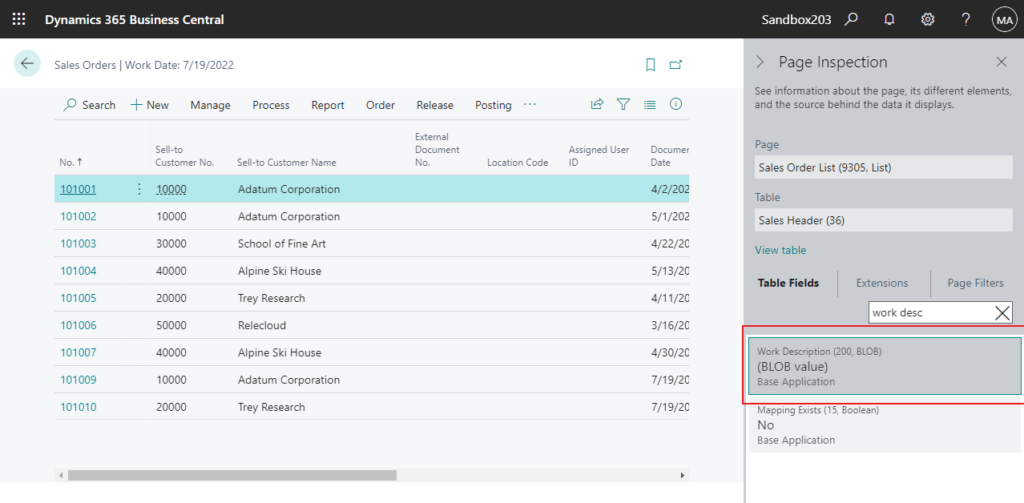
In the architecture of Business Central, a Blob is a complex, variable-length data type specifically designed to store large amounts of unstructured data. Unlike a standard text field which may have character limits, a Blob field can hold up to 2 gigabytes of data, making it ideal for storing things like images, documents, or, in this case, extensive text notes without any practical limitation on length.
This architectural choice represents a deliberate design trade-off. Microsoft prioritized the flexibility of unlimited text storage over the convenience of out-of-the-box exportability. Standard export functionalities, such as "Open in Excel" or Configuration Packages (in versions prior to 2024), are built to extract structured, well-defined data like numbers, dates, and simple text from table columns. They do not possess the native logic to "read" the contents of a complex binary object. As a result, instead of extracting the text, the system simply places an asterisk (*) in the exported file as a placeholder to indicate that the Blob field contains a value, but it cannot render the content itself.
This behavior stands in sharp contrast to how other data types export cleanly, making the Blob an exception that requires special handling. Interacting with Blob fields programmatically involves specific methods like CreateInStream (to read data from the Blob) and CreateOutStream (to write data to it), which foreshadows the custom development solutions required for older versions of the platform. However, with the evolution of Business Central, this historical limitation has been directly addressed.
The Modern Solution (BC24+): Exporting Work Description with Configuration Packages
For organizations running on modern versions of the platform, the most significant development is that this long-standing export issue can now be resolved without writing a single line of code. As of Business Central 2024 Wave 1 (version 24.0), Microsoft has enhanced the standard Configuration Package functionality to correctly interpret and export multiline text from Blob fields.
This update is a direct response to a major community pain point and provides a simple, user-friendly solution. It effectively eliminates the need for custom development for this common task, provided the system is up to date. For businesses on older versions, this feature serves as a compelling reason to consider an upgrade, as it can save significant time and development costs.
To export the Work Description to Excel using this modern, no-code method, follow these steps:
- Navigate to Configuration Packages: Use the search function (Tell Me) in Business Central to find and open the Configuration Packages list page.
- Create or Select a Package: Create a new configuration package or select an existing one. In the package lines, add the table containing the
Work Descriptionfield. For sales orders, this is Table 36, "Sales Header". For posted sales invoices, this is Table 112, "Sales Invoice Header". - Include the Blob Field: This is the most critical step. Select the table line and, in the ribbon, choose the Fields action to open the
Config. Package Fieldspage. By default, theWork Descriptionfield may not be included. Use the "Include Field" action to explicitly add theWork Descriptionfield to the package.
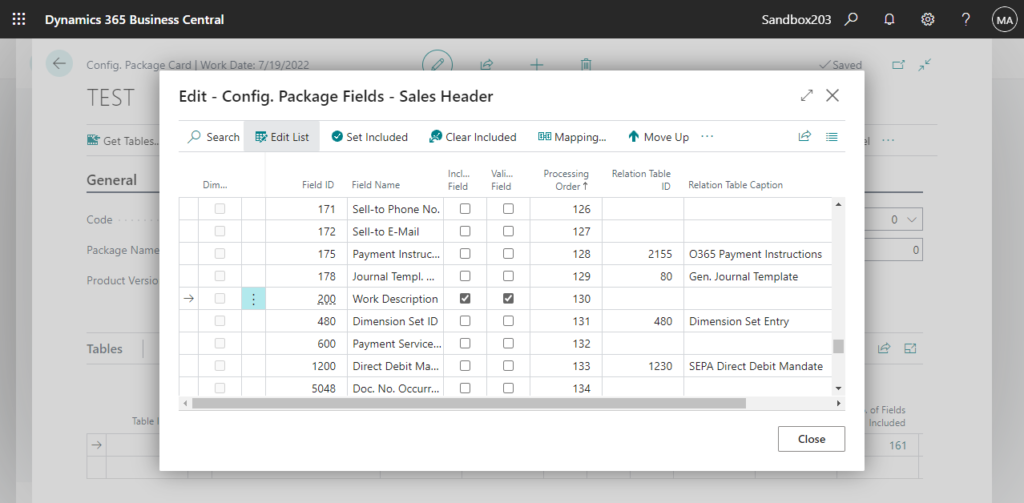
- Export to Excel: Return to the
Config. Package Cardand select the Export to Excel action from the Export menu. - Verify the Output: Open the downloaded Excel file. The
Work Descriptioncolumn will now contain the data, but it will appear as a long string of characters, such asVGVzdCBJdA==Base64 Encoded Value.
Important: Handling Base64 Encoding For Work Description in Your Excel Export
When you open the exported Excel file, you will notice the Work Description field does not contain plain text. Instead, it contains a long string of seemingly random characters (e.g., VGVzdCBJdA==). This is not an error. This is the Base64 encoded version of your text.
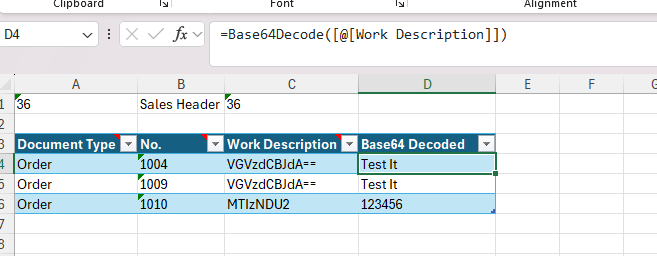
Base64 is a standard method used to convert binary data (like the contents of a Blob) into a plain text string. This ensures that multiline text, special characters, and formatting are transferred safely without being corrupted. While you can use online tools to convert this text, a much more efficient method is to handle the conversion directly within Excel using a small VBA script.
Working with Base64 Work Description Data Directly in Excel (VBA Solution)
By adding a small script to your Excel workbook, you can create your own formulas (=Base64Decode() and =Base64Encode()) to handle the conversion seamlessly.
Step 1: Add the VBA Code to a Module
- Open your exported Excel file.
- Press Alt + F11 to open the Visual Basic for Applications (VBA) Editor.
- In the VBA Editor, right-click on your workbook's name in the "Project" pane (usually on the left) and select Insert > Module.
- A new empty module window will appear. Copy and paste the following code into this window:
'--- Base64 Encode/Decode Functions for Excel ---

'Decodes a Base64 string to plain text, using a specified character set (UTF-8 is default for BC)
Public Function Base64Decode(ByVal base64Text As String, Optional ByVal charset As String = "UTF-8") As String
    Dim arrBytes() As Byte
    On Error GoTo ErrHandler

    'Use MSXML to decode the Base64 string into a byte array
    With CreateObject("MSXML2.DOMDocument").createElement("b64")
       .DataType = "bin.base64"
       .Text = base64Text
        arrBytes =.nodeTypedValue
    End With

    'Use ADODB stream to convert the byte array back to a string with the correct character set
    With CreateObject("ADODB.Stream")
       .Type = 1 'adTypeBinary
       .Open
       .Write arrBytes
       .Position = 0
       .Type = 2 'adTypeText
       .charset = charset
        Base64Decode =.ReadText
       .Close
    End With
    Exit Function
ErrHandler:
    Base64Decode = "Error: " & Err.Description
End Function

'Encodes plain text to a Base64 string, using a specified character set (UTF-8 is default for BC)
Public Function Base64Encode(ByVal plainText As String, Optional ByVal charset As String = "UTF-8") As String
    Dim arrBytes() As Byte
    On Error GoTo ErrHandler

    'Use ADODB stream to convert the string to a byte array with the correct character set
    With CreateObject("ADODB.Stream")
       .Type = 2 'adTypeText
       .charset = charset
       .Open
       .WriteText plainText
       .Position = 0
       .Type = 1 'adTypeBinary
        arrBytes =.Read
       .Close
    End With

    'Use MSXML to encode the byte array into a Base64 string
    With CreateObject("MSXML2.DOMDocument").createElement("b64")
       .DataType = "bin.base64"
       .nodeTypedValue = arrBytes
        Base64Encode =.Text
    End With
    Exit Function
ErrHandler:
    Base64Encode = "Error: " & Err.Description
End Function- Press Ctrl + S to save. Excel will prompt you that you cannot save these features in a macro-free workbook. Click "No".
- In the "Save As" dialog, choose "Excel Macro-Enabled Workbook (*.xlsm)" from the "Save as type" dropdown and save the file.
Step 2: Use the New Formulas to Decode and Encode
You can now use these functions like any other Excel formula.
- To Decode (Read the Text):
- Insert a new column next to your
Work Descriptioncolumn. Let's say your Base64 text is in cell C2. - In the new column, type the formula:
=Base64Decode(C2) - Press Enter. You will now see the readable, multiline text. Drag this formula down for all rows.
- Insert a new column next to your
- To Edit and Re-Encode for Import:
- Insert another new column to edit the text. Make your changes here. Let's say your edited plain text is in cell D2.
- Insert a third new column. In this column, type the formula to re-encode your edited text:
=Base64Encode(D2) - This will generate the new Base64 string required for import. Drag this formula down for all rows.
- Crucial Final Step: Before importing, you must copy the entire column of new Base64 strings. Then, right-click on the first cell of the original
Work Descriptioncolumn (cell C2 in our example) and choose Paste Special > Values. This replaces the formulas with the static text values that Business Central requires. - Save the
.xlsmfile. You can now import this file back into Business Central using the Import from Excel and Apply Package actions.
Working with Base64 Work Description Data Using Online Tool
- To Read the Text: Copy the Base64 string from the Excel cell. Use a free online "Base64 Decoder" tool to paste the string and convert it back to readable plain text.
- To Edit and Re-Import:
- Decode: Copy the Base64 string from Excel and use a decoder to get the plain text.
- Edit: Make your changes to the decoded plain text.
- Re-Encode: Take your new, modified text and use an online "Base64 Encoder" tool to convert it back into a new Base64 string.
- Update and Import: Paste this new Base64 string into the correct cell in your Excel file, replacing the old one. You can then import the file back into Business Central using the Import from Excel and Apply Package actions.
This decode/re-encode step is the required process for correctly handling Blob data via Configuration Packages and ensures data integrity upon import.
This enhanced functionality also works in reverse, allowing users to update the Work Description text in the Excel file and import it back into Business Central using the Import from Excel and Apply Package actions.
It is worth noting that one report on an early release of version 24.0 indicated that only the first line of text was exported. While this may have been a bug in a pre-release build, it is advisable for users to test this functionality in their own environment to confirm it behaves as expected on their specific version.
Beyond Exporting: Displaying Work Description on List Pages
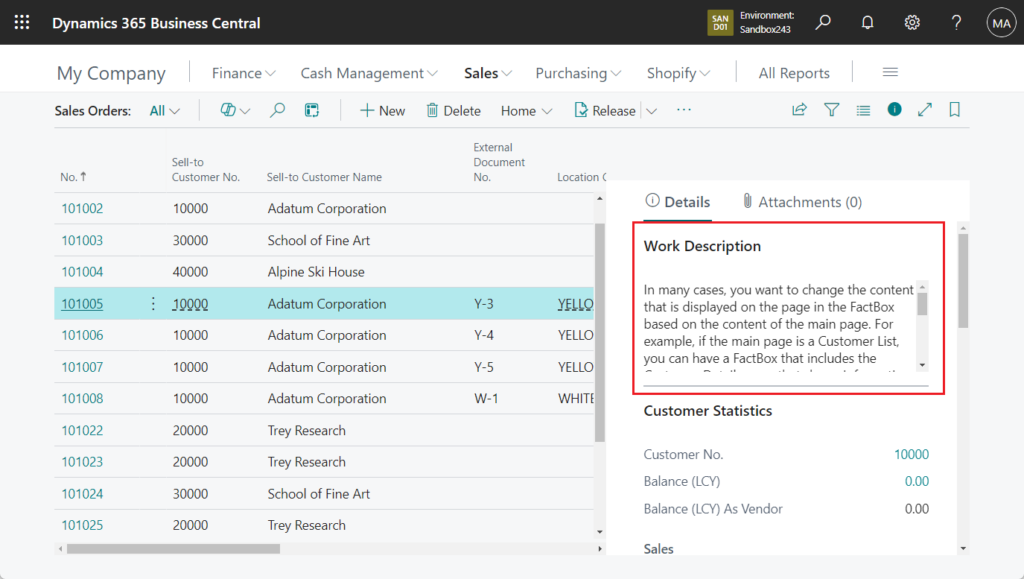
A related and common challenge is the inability to view the Work Description content directly on list pages like the Sales Order List. By default, this field is not displayed because, as a Blob field, it could contain a large amount of data. Loading this data for every single row shown on a list page would significantly slow down the system and harm performance.
The most effective and user-friendly solution is to display the content in a FactBox. A FactBox is the information pane that appears on the right side of a page, showing details related to the selected record in the list. This approach provides immediate visibility without cluttering the main list or impacting initial page load times.
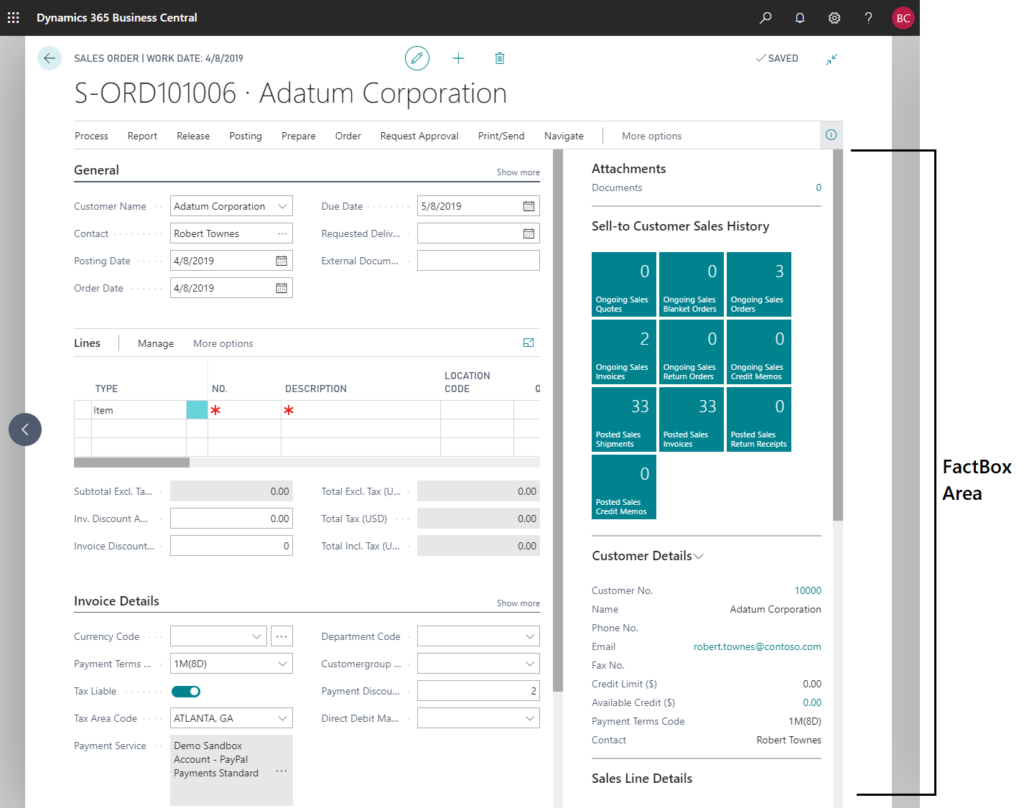
This is also superior to using the standard "Notes" feature, as the full text is displayed directly, and the content from Work Description can be printed on standard reports, whereas notes cannot.
Implementing this requires a small customization. A developer must create a simple extension that adds the FactBox to the desired list page.
Step 1: Create the FactBox Page
First, a new page of type CardPart is created. This page will serve as the FactBox itself. The core logic involves using a text variable to hold the description and populating it by calling the standard GetWorkDescription() procedure whenever a new record is selected in the main list.
AL Code for FactBox Page:
page 50222 "Sales Order Work Description"
{
    Caption = 'Work Description';
    DeleteAllowed = false;
    InsertAllowed = false;
    LinksAllowed = false;
    PageType = CardPart;
    SourceTable = "Sales Header";

    layout
    {
        area(content)
        {
            field(WorkDescription; WorkDescription)
            {
                ApplicationArea = All;
                Editable = false;
                MultiLine = true;
                ShowCaption = false;
            }
        }
    }

    var
        WorkDescription: Text;

    trigger OnAfterGetRecord()
    begin
        WorkDescription := '';
        if Rec."Work Description".HasValue then
            WorkDescription := Rec.GetWorkDescription();
    end;
}
Step 2: Extend the List Page to Show the FactBox
Next, a pageextension is created to add the new FactBox page to the target list page (in this case, "Sales Order List"). This extension links the FactBox to the main page so that it updates automatically when the user selects different sales orders.
AL Code for Page Extension:
pageextension 50222 SalesOrderListExt extends "Sales Order List"
{
    layout
    {
        addbefore(Control1902018507)
        {
            part(salesOrderWorkDescription; "Sales Order Work Description")
            {
                ApplicationArea = All;
                SubPageLink = "No." = field("No."),
                              "Document Type" = field("Document Type");
            }
        }
    }
}
page 50222 "Sales Order Work Description"
{
    Caption = 'Work Description';
    DeleteAllowed = false;
    InsertAllowed = false;
    LinksAllowed = false;
    PageType = CardPart;
    SourceTable = "Sales Header";
    layout
    {
        area(content)
        {
            field(WorkDescription; WorkDescription)
            {
                ApplicationArea = All;
                Importance = Additional;
                MultiLine = true;
                ShowCaption = false;
            }
        }
    }
    var
        WorkDescription: Text;
    trigger OnAfterGetRecord()
    begin
        WorkDescription := '';
        if Rec."Work Description".HasValue then
            WorkDescription := Rec.GetWorkDescription();
    end;
}
Once this extension is published, users can see the full Work Description for any selected sales order directly on the list page, significantly streamlining their workflow without having to open each document individually.
Performance Optimization: Why This Method is Efficient
Since Business Central 2020 release wave 2, the platform optimizes how FactBoxes are loaded to ensure the main page remains responsive. The loading sequence is as follows:
- Content on the main page is loaded first, allowing users to interact with it immediately.
- The FactBox pane is loaded next.
- FactBoxes that are not currently in view (i.e., the user would need to scroll to see them) are only loaded when they are scrolled into view.
- If the entire FactBox pane is collapsed, no FactBoxes are loaded until the user expands it.
This "lazy loading" mechanism is precisely why the FactBox solution is highly performant. It avoids the significant performance hit of loading all Blob data at once, instead only loading the description for the single, selected record when it is needed.
Custom AL Solutions: For Older Versions & Programmatic Exports
For organizations using a version of Business Central prior to 24.0, or for developers who need to embed this export logic into a custom report, automated process, or another extension, a custom solution using the AL (Application Language) is necessary.
Both of the following custom methods rely on a standard Business Central object called the Excel Buffer.
Introducing the Excel Buffer: The Developer's Tool for Excel Creation
The Excel Buffer is a temporary, in-memory table that provides a structured way for developers to programmatically construct an Excel workbook. Instead of writing directly to a file, developers add data cell-by-cell into this buffer table. It includes a suite of functions to manage the process, such as CreateNewBook, NewRow, AddColumn, WriteSheet, and OpenExcel. This is the standard, Microsoft-supported method for generating Excel files via AL code, offering control over basic formatting and cell data types.
Method 1: The InStream Approach for Reading Blob Data
This method represents the foundational, "from-the-ground-up" approach to reading data from a Blob field. The core logic involves creating a data stream (InStream) that connects directly to the Blob, allowing its text content to be read and transferred to a standard text variable. Understanding this pattern is a valuable and transferable skill, as it forms the basis for many file and data stream operations in AL development.
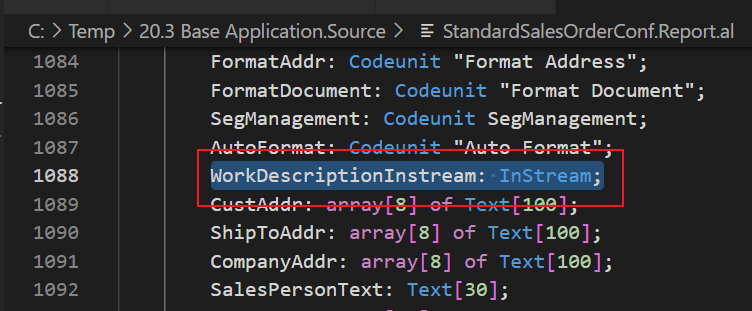
The solution involves creating a pageextension to add a custom "Export to Excel" action to a list page, such as the "Sales Order List".
AL Code Example:
pageextension 50101 SalesOrderListExt extends "Sales Order List"
{
    actions
    {
        addfirst(processing)
        {
            action(ExportToExcel)
            {
                Caption = 'Export to Excel';
                ApplicationArea = All;
                Promoted = true;
                PromotedCategory = Process;
                Image = Export;

                trigger OnAction()
                begin
                    // Pass the current set of records to the export procedure
                    ExportSalesOrders(Rec);
                end;
            }
        }
    }

    local procedure ExportSalesOrders(var SalesHeader: Record "Sales Header")
    var
        TempExcelBuffer: Record "Excel Buffer" temporary;
        WorkDescriptionInstream: InStream;
        WorkDescriptionLine: Text;
        SalesOrdersLbl: Label 'Sales Orders';
        ExcelFileName: Label 'Sales Orders_%1_%2';
    begin
        // Initialize the Excel Buffer
        TempExcelBuffer.Reset();
        TempExcelBuffer.DeleteAll();

        // Create the header row in the Excel file
        TempExcelBuffer.NewRow();
        TempExcelBuffer.AddColumn(SalesHeader.FieldCaption("No."), false, '', true, false, false, '', TempExcelBuffer."Cell Type"::Text);
        TempExcelBuffer.AddColumn(SalesHeader.FieldCaption("Sell-to Customer Name"), false, '', true, false, false, '', TempExcelBuffer."Cell Type"::Text);
        TempExcelBuffer.AddColumn(SalesHeader.FieldCaption("Work Description"), false, '', true, false, false, '', TempExcelBuffer."Cell Type"::Text);
        //... add other columns as needed

        // Important: Ensure the Blob field is calculated before accessing it
        SalesHeader.SetAutoCalcFields("Work Description");

        // Loop through the selected Sales Header records
        if SalesHeader.FindSet() then
            repeat
                WorkDescriptionLine := '';
                TempExcelBuffer.NewRow();
                TempExcelBuffer.AddColumn(SalesHeader."No.", false, '', false, false, false, '', TempExcelBuffer."Cell Type"::Text);
                TempExcelBuffer.AddColumn(SalesHeader."Sell-to Customer Name", false, '', false, false, false, '', TempExcelBuffer."Cell Type"::Text);

                // Core logic: Read the Blob content using a stream
                if SalesHeader."Work Description".HasValue() then begin
                    SalesHeader."Work Description".CreateInStream(WorkDescriptionInstream, TEXTENCODING::UTF8);
                    WorkDescriptionInstream.ReadText(WorkDescriptionLine);
                end;

                TempExcelBuffer.AddColumn(WorkDescriptionLine, false, '', false, false, false, '', TempExcelBuffer."Cell Type"::Text);
                //... add other columns' data
            until SalesHeader.Next() = 0;

        // Create and open the Excel file
        TempExcelBuffer.CreateNewBook(SalesOrdersLbl);
        TempExcelBuffer.WriteSheet(SalesOrdersLbl, CompanyName(), UserId());
        TempExcelBuffer.CloseBook();
        TempExcelBuffer.SetFriendlyFilename(StrSubstNo(ExcelFileName, CurrentDateTime, UserId));
        TempExcelBuffer.OpenExcel();
    end;
}
Code Breakdown:
TempExcelBuffer: Record "Excel Buffer" temporary;: Declares a temporary, in-memory instance of theExcel Buffertable.SalesHeader.SetAutoCalcFields("Work Description");: This crucial line instructs the system to load the Blob field's data into memory when theSalesHeaderrecord is fetched. Without this, the Blob would be empty.SalesHeader."Work Description".CreateInStream(WorkDescriptionInstream, TEXTENCODING::UTF8);: This is the heart of the method. TheCreateInStreamfunction opens a readable data channel to the Blob's content. SpecifyingTEXTENCODING::UTF8is a best practice to ensure that all characters, including international and special symbols, are interpreted correctly.WorkDescriptionInstream.ReadText(WorkDescriptionLine);: This function reads the entire text content from the opened stream and stores it in theWorkDescriptionLinetext variable, preserving any line breaks.TempExcelBuffer.AddColumn(WorkDescriptionLine,...): The extracted text is then added as a new cell in the current row of theExcel Buffer.TempExcelBuffer.CreateNewBook(...)andTempExcelBuffer.OpenExcel(): These final commands assemble the data from the buffer into a complete Excel workbook and present it to the user for download.
Method 2: Using the GetWorkDescription() Procedure
While the InStream method is effective, it requires several lines of code to handle the stream. A more elegant and streamlined alternative is to use a built-in helper function that already exists on the Sales Header table: GetWorkDescription().
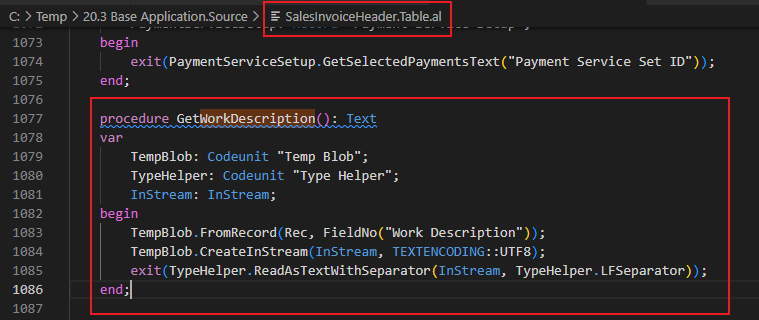
The Business Central base application often provides such procedures to encapsulate complex logic into a simple, reusable function. Using these standard functions is a development best practice, as it leads to cleaner, more maintainable code that is less likely to break during future platform updates. The GetWorkDescription() function performs the InStream and ReadText operations internally, returning the final text directly.
The implementation is nearly identical to the first method, but the core logic for reading the Blob is simplified to a single line.
AL Code Example (Modified Procedure):
local procedure ExportSalesOrders(var SalesHeader: Record "Sales Header")
    var
        TempExcelBuffer: Record "Excel Buffer" temporary;
        WorkDescriptionLine: Text;
        //... other variables remain the same
    begin
        //... initialization and header creation code remains the same

        // Loop through the selected Sales Header records
        if SalesHeader.FindSet() then
            repeat
                WorkDescriptionLine := '';
                TempExcelBuffer.NewRow();
                TempExcelBuffer.AddColumn(SalesHeader."No.", false, '', false, false, false, '', TempExcelBuffer."Cell Type"::Text);
                TempExcelBuffer.AddColumn(SalesHeader."Sell-to Customer Name", false, '', false, false, false, '', TempExcelBuffer."Cell Type"::Text);

                // Core logic: Use the standard helper function
                WorkDescriptionLine := SalesHeader.GetWorkDescription();

                TempExcelBuffer.AddColumn(WorkDescriptionLine, false, '', false, false, false, '', TempExcelBuffer."Cell Type"::Text);
                //... add other columns' data
            until SalesHeader.Next() = 0;

        //... Excel creation code remains the same
    end;
Code Breakdown:
The only significant change is the replacement of the if...CreateInStream...ReadText block with a single, clean function call: WorkDescriptionLine := SalesHeader.GetWorkDescription();. This leverages the existing, standard application code, which is more robust and efficient. Because Microsoft maintains this standard function, any future changes to how the Work Description is stored will likely be accounted for within the function itself, making the custom extension more future-proof.
A Practical Guide to Exporting from Posted Sales Invoices
A common business requirement is not just to export Work Description to Excel from open sales orders, but also from historical, posted sales invoices. This is essential for auditing, sales analysis, and reviewing past customer communications.
Fortunately, the same logic and solutions apply directly to posted invoices. The Sales Invoice Header table (Table 112) also contains a Work Description Blob field and, crucially, its own GetWorkDescription() method.
To create an export for sales invoices, a developer would simply replicate the AL code examples above, but target Table 112 "Sales Invoice Header" instead of Table 36 "Sales Header". The core logic remains identical, demonstrating the consistent design of the Business Central application.
Important Considerations for Data Export
To provide a truly comprehensive overview, several related factors and potential extensions should be considered:
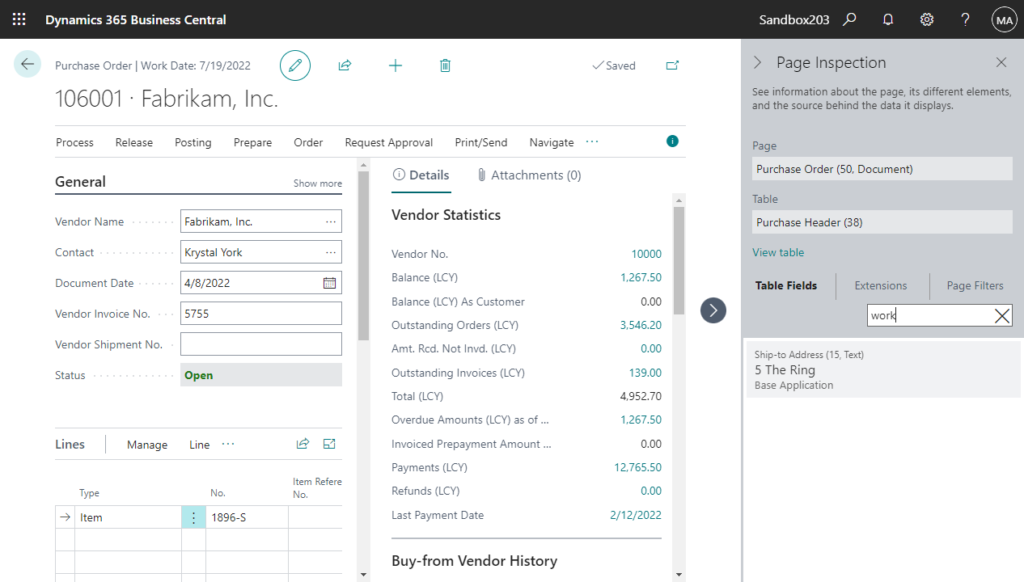
- Functionality in Purchase Documents: It is important to note that the standard
Work Descriptionfield is not available in the purchasing module (e.g., Purchase Orders). Organizations that require similar functionality on the procurement side would need to commission a custom extension to add a Blob field to the purchase header tables and replicate the associated logic.
- Required User Permissions: For any user to see the standard "Open in Excel" or "Edit in Excel" actions, they must be assigned the
D365 Excel Export Actionpermission set or the underlying system permission6110. Administrators can use these permissions to control which users are allowed to export data, which can be a critical aspect of data governance. - System Export Limitations and Performance: Even with a working solution, there are inherent system limits to consider. Microsoft Excel has a maximum limit of 1,048,576 rows and 16,384 columns per worksheet. Furthermore, Business Central Online has its own limits on report execution time and the maximum number of rows that can be processed. For on-premises deployments, system administrators can configure a server setting (
Max Data Rows Allowed to Send to Excel) to an even lower limit. For extremely large datasets, performance can be a concern, and alternative bulk export strategies may be required.
Solution Comparison: Which Export Method Is Right for You?
Choosing the correct method depends entirely on your specific circumstances, including your Business Central version and technical skill level. The following table provides a clear comparison to guide your decision.
| Feature | Configuration Package (BC24+) | Custom AL: InStream Method | Custom AL: GetWorkDescription() Method |
|---|---|---|---|
| BC Version Requirement | Business Central 24.0 or newer | All versions | All versions |
| Technical Skill Required | User / Administrator (No Code) | AL Developer (Advanced) | AL Developer (Intermediate) |
| Primary Use Case | Quick, manual exports of sales document data by users on modern systems. | Building this logic into automated processes or for users on older BC versions. Provides full, low-level control over the data stream. | The recommended, cleaner approach for all custom development, leveraging standard application logic for robustness. |
| Maintainability | Maintained by Microsoft as a standard feature. No custom code to manage. | Requires developer maintenance if platform changes affect stream handling. | More robust and future-proof; relies on a standard function that Microsoft maintains. |
Frequently Asked Questions (FAQ)
What exactly is a Blob field in Business Central?
A Blob, or Binary Large Object, is a special data type used to store large amounts of unstructured data. Unlike a standard text field, it can hold up to 2 GB of data, making it suitable for things like long, multiline text descriptions, images, or other files. Its flexibility in storage comes at the cost of being incompatible with older, standard export tools.
Can I export the Work Description to Excel without writing code?
Yes, if you are using Business Central version 24.0 or newer, you can use Configuration Packages. However, the exported text will be in a Base64 encoded format. You must decode this text to read or edit it.
Why do I only see an asterisk (*) when I export?
The asterisk is a placeholder. It appears when using standard export tools in older versions of Business Central because these tools are not designed to read the content inside a complex Blob field. The asterisk simply indicates that the field contains data, but the tool cannot render it.
How can I export the Work Description from Posted Sales Invoices?
You can export the Work Description from Posted Sales Invoices using the exact same methods as for Sales Orders. If you are on BC24+, use a Configuration Package and select Table 112 "Sales Invoice Header". If you require a custom solution, the Sales Invoice Header table also has a GetWorkDescription() procedure that can be used in AL code.
Can I use this solution to export the Work Description from Purchase Orders?
No, not out of the box. The standard Work Description field and its associated logic are features of the sales module and do not exist on purchase documents. To achieve similar functionality for Purchase Orders, a developer would need to create a custom extension to add a new Blob field and the corresponding export logic to the purchasing module.
What is the Excel Buffer?
The Excel Buffer is a temporary table within Business Central that serves as a tool for developers. It allows them to programmatically build an Excel file in memory by adding rows, columns, and cell values through AL code. Once the buffer is populated with the desired data, its built-in functions can be used to generate and download the final .xlsx file for the user.
Why does my exported Work Description look like a random string of characters (e.g., VGVzdCBJdA==)?
This is Base64 encoding. It's a standard way to safely transfer complex data like multiline text in a file. It is not an error. You need to decode this string to convert it back into readable text.
How can I decode the Base64 text directly in Excel?
You can add a small VBA script to your Excel workbook to create a custom =Base64Decode() formula. This guide provides the full code and step-by-step instructions for adding it to your Excel file, allowing you to convert the text without needing external tools.
