
For manufacturing companies, the constant challenge of maintaining precise inventory levels while streamlining production is a familiar battle. The manual effort required to track every component consumed on the shop floor can be a significant drain on resources, often leading to data entry errors, stock discrepancies, and inaccurate costing. In Microsoft Dynamics 365 Business Central, this challenge is met with a powerful and elegant solution: flushing methods.
Choosing the right flushing method in business central is not just a technical configuration; it is a critical business decision that directly impacts inventory accuracy, production efficiency, the workload of your shop floor team, and the integrity of your financial reports. An optimized flushing strategy automates material consumption, reduces manual work, and provides a real-time, accurate view of your manufacturing operations.
By using the appropriate flushing method, businesses can:
✅ Automate material consumption and reduce manual work
✅ Improve inventory accuracy and minimize errors
✅ Ensure smooth production processes with real-time tracking
This ultimate guide provides an exhaustive exploration of flushing methods in Business Central. We will cover everything from the foundational definitions of Manual, Forward, and Backward flushing to advanced applications involving Routing Link Codes, item tracking (lots and serial numbers), and integration with warehouse operations.
By the end of this article, you will have the knowledge to configure the perfect flushing strategy that enhances efficiency and control for your unique production environment.
Table of Contents
What is Flushing in Manufacturing? A Foundational Overview
At its core, flushing is an inventory bookkeeping process that automates the recording of raw material consumption during production. It dictates when and how components are moved from a storage location (inventory) to Work-in-Process (WIP), the accounting designation for materials actively being used in production.
This is a stark contrast to performing manual inventory adjustments, which are separate, ad-hoc transactions. Flushing methods are integrated directly into the production order lifecycle, providing a systematic way to account for material usage.
The importance of implementing a proper flushing strategy cannot be overstated. It is a cornerstone of efficient production management within Business Central for several key reasons:
- Reduces Manual Data Entry: The primary benefit is the drastic reduction in manual work. Instead of requiring shop floor staff to meticulously record every item used in the Consumption Journal, flushing automates this process based on predefined rules. This saves countless hours and minimizes the risk of human error.
- Enhances Inventory Accuracy: By ensuring that inventory records are updated in near real-time as production progresses, flushing prevents the common problem of stock levels becoming disconnected from reality. This accuracy is vital for reliable inventory planning and preventing material shortages.
- Supports Lean Manufacturing: Flushing methods are a key enabler of lean and Just-in-Time (JIT) principles. By configuring materials to be consumed only when they are needed, companies can minimize waste, reduce WIP inventory, and optimize production workflows.
- Improves Costing Precision: The timing of material consumption directly impacts how and when costs are applied to a production order. A well-defined flushing strategy ensures that product costing is accurate and timely, providing a clearer picture of profitability and affecting overall financial visibility.
The 3 Core Flushing Methods in Business Central: A Strategic Comparison
Business Central offers three primary flushing methods that form the foundation of your consumption strategy: Manual, Forward, and Backward. These are configured on the Replenishment FastTab of the Item Card or Stockkeeping Unit Card. The method chosen for an item is then automatically copied to the component line when it is used in a production order.
The decision between these three options is not merely a technical setting but a fundamental strategic choice. It represents a trade-off on a spectrum between absolute precision and control on one end, and maximum efficiency and automation on the other.
- Manual Flushing sits at the "Maximum Control" end of the spectrum. It provides granular, explicit control over every consumption transaction but requires the most manual effort.
- Forward and Backward Flushing represent the "Maximum Automation" end. They significantly reduce labor by automating consumption based on production order status changes, but they rely on the assumption that planned consumption is accurate.
Understanding where your production processes and specific components fall on this spectrum is the key to selecting the right method. A business producing high-value, custom machinery will lean towards Manual, while a company mass-producing standard fasteners will benefit from the automation of Forward or Backward flushing.
The following table provides a quick reference to compare the critical aspects of each method, helping you make an informed decision at a glance.
| Flushing Method | Consumption Trigger | Best For (Production Type) | Level of Control | Impact on WIP |
|---|---|---|---|---|
| Manual | User posts the Consumption Journal or Production Journal. | Custom production, high-value components, variable consumption. | Maximum: User verifies and adjusts every transaction. | Cost moves to WIP only when the journal is posted. |
| Forward | Production order status changes to Released. | Repetitive manufacturing, stable BOMs, low-cost components. | Automated: Assumes planned quantity is consumed at the start. | Cost moves to WIP immediately upon order release. |
| Backward | Production order status changes to Finished. | Simple and predictable workflows, short production cycles. | Automated: Assumes planned quantity is consumed based on final output. | Cost moves to WIP only after production is complete. |
Each method is useful depending on the production requirements of the business.
How to Set a Flushing Method in Business Central
To configure a flushing method for an item in Microsoft Dynamics 365 Business Central, follow these steps:
- Go to the "Items" list in Business Central.
- Select the item you want to update.
- Click Edit to open the Item Card.
- Go to the Replenishment FastTab.
- Locate the Flushing Method field and choose one of the following:
- Manual
- Forward
- Backward
- Save changes.
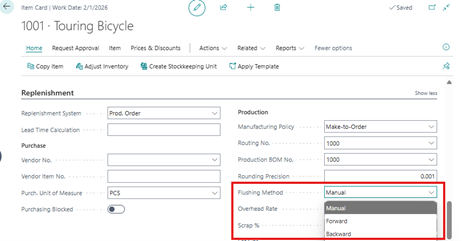
This flushing method will now apply whenever this item is used in a production order.
Deep Dive: The Manual Flushing Method for Maximum Control
The Manual flushing method is the most straightforward and controlled approach. It operates on a simple principle: nothing is consumed from inventory until a user explicitly says so by posting a transaction in the Consumption Journal or the combined Production Journal. This method grants you complete oversight of material usage, making it indispensable for certain manufacturing scenarios.
When to Use Manual Flushing
This method is the ideal choice when precision and flexibility are paramount. Consider using Manual flushing for:
- High-Value or Critical Components: For expensive or essential parts like engines, processors, or specialized alloys, you need to account for every single unit. Manual flushing ensures no discrepancies occur.
- Custom Manufacturing (Job Shop): In environments where each production order is unique and material requirements can vary significantly, manual posting allows you to record the exact quantities used for each specific job.
- Variable Consumption and Scrap: When processes involve unpredictable material usage—due to factors like yield differences, quality issues, or scrap—manual entry is the only way to accurately capture the actual consumption rather than the planned amount from the Bill of Materials (BOM).
- Strict Item Tracking Requirements: While automatic methods can be used with lot and serial numbers (as we'll discuss later), Manual flushing provides the most direct workflow for selecting the specific tracked item at the moment of consumption.
How to Use Manual Flushing Method in Business Central?
- Set the Flushing Method: Navigate to the Item Card for the component you want to control. On the Replenishment FastTab, set the Flushing Method field to Manual and save the change.
- Create and Release a Production Order: When you create a new production order that uses this item as a component, the system automatically copies the
Manualflushing method to the production order component line. Release the production order to make it active on the shop floor.
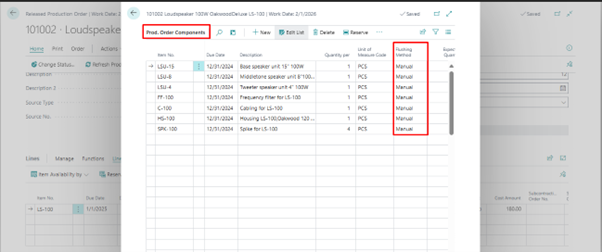
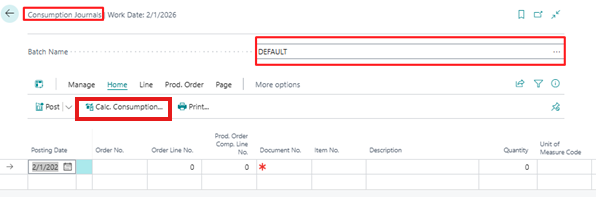
- Navigate to the Consumption Journal: From the Business Central search, open the Consumption Journal. This is the dedicated journal for recording material usage against production orders.
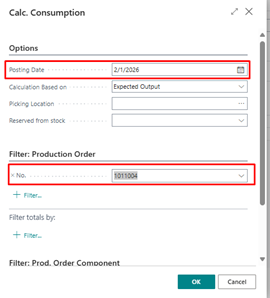
- Calculate Consumption: Instead of entering lines manually, use the
Calc. Consumptionaction. In the request page, filter for the specific Production Order No. you are working on. This powerful function will automatically populate the journal with all the components from that order that are set toManualflushing, along with their expected quantities.
- Review, Adjust, and Verify: This is the most critical step in the manual process. The journal now displays the proposed consumption lines. Your shop floor supervisor or operator can now:
- Adjust the Quantity: If more or less material was used than planned, update the Quantity field to reflect the actual usage.
- Assign Item Tracking: For lot or serial-tracked items, use the item tracking lines to select the specific Lot No. or Serial No. that was consumed.
- Verify All Details: Confirm bin codes, dimensions, and other details are correct before proceeding.
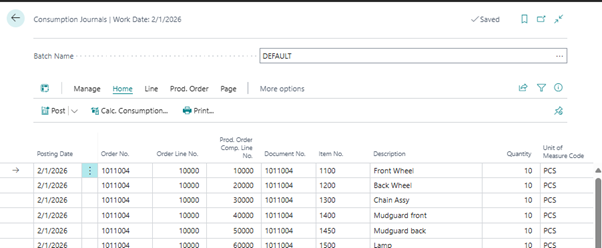
- Post the Journal: Once all lines are verified and accurate, select the Post action. This action executes the inventory transaction, creating negative Item Ledger Entries for the components and officially moving their cost to the production order's WIP account.
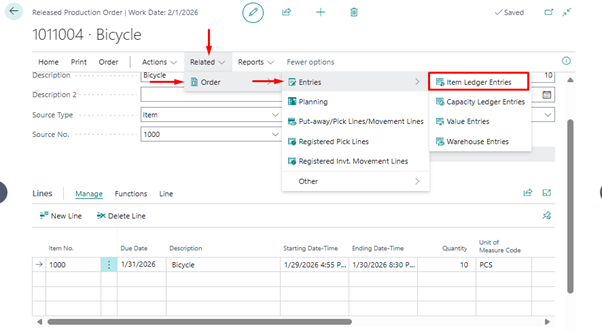
- Confirm the Entries: To ensure everything was posted correctly, navigate back to the released production order and view the Item Ledger Entries. You will see the consumption transactions you just posted, providing a complete audit trail.
Deep Dive: The Forward Flushing Method for Proactive Automation
The Forward flushing method is designed for efficiency and automation, operating on the principle of proactive consumption. When an item is set to Forward flushing, Business Central automatically posts its consumption from inventory the moment a production order status is changed to Released. The system assumes that all materials planned for the job are immediately moved to production and consumed, providing an early picture of material commitment.
When to Use Forward Flushing
This automated method is best suited for stable and predictable production environments. It delivers the most value in scenarios such as:
- High-Volume, Repetitive Manufacturing: For assembly lines producing standard products where the Bill of Materials (BOM) is consistent and material usage is highly predictable, Forward flushing eliminates the need for manual data entry for every order.
- Low-Cost, High-Quantity Components: For inexpensive items like screws, nuts, bolts, or gaskets, the administrative overhead of tracking each one manually far outweighs the benefit. Forward flushing these items is a common and effective practice.
- Early WIP Cost Recognition: When a business wants to recognize material costs in Work-in-Process (WIP) as early as possible for accounting or project tracking purposes, Forward flushing accomplishes this by posting the cost at the start of the production lifecycle.
Types of Forward Flushing Methods:
- Forward Flushing for an Entire Production Order → This is the most direct form of automated consumption. In this setup, all components on the BOM that are set to
Forwardare consumed from inventory in a single transaction when the production order is released.- To configure this, you must ensure two conditions are met:
- The Flushing Method on the respective Item Cards is set to Forward.
- There are no Routing Link Codes assigned to these components within the Production BOM. The absence of a routing link code tells the system to flush the component based on the overall order status, not a specific operation.
- Forward Flushing by Operation →This is a more sophisticated application of the Forward flushing method. It allows for a "just-in-time" approach to consumption, where materials are automatically consumed only when the specific production operation that requires them begins. This prevents materials needed for later stages of production from being consumed prematurely. This granular control is achieved through the use of Routing Link Codes (RLCs), which we will explore in detail in a subsequent section..
How to Use Forward Flushing Method in Business Central?
Forward Flushing Method For Entire Production Order
- Create a Released Production Order.
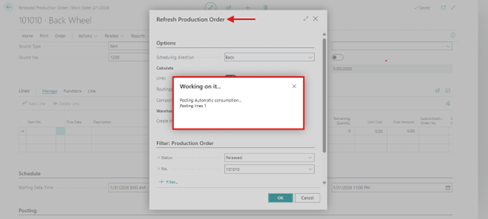
- Refresh the order → Consumption is automatically recorded.
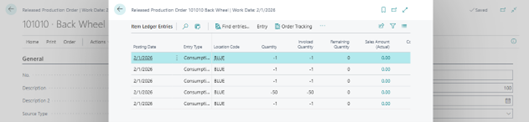
- Check Item Ledger Entries to confirm material deduction.
- Post the Output and change status to Finished.
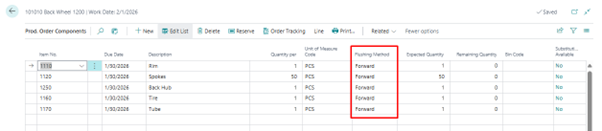
Forward Flushing Method By Production Order Operations
To check consumption using the forward flushing method by operation in Business Central, follow these steps:
- Set Up Routing Link Codes in the Routing master and Production Order components.
- Assign Routing Link Codes to Operations:
- Navigate to the "Routing" page.
- Select the routing you want to modify.
- In the "Routing Link Code" field for each operation, assign the appropriate routing link code.
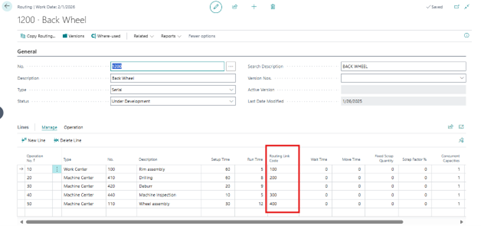
- Assign Routing Link Codes to Components in the Production BOM:
- Go to the "Production BOM" page.
- Select the BOM you want to modify.
- In the "Routing Link Code" field for each component, assign the corresponding routing link code.
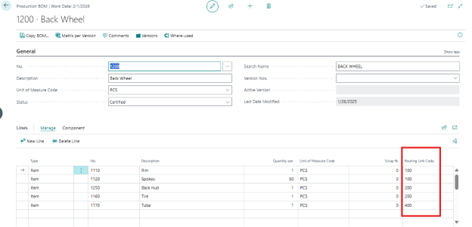
- Create a Released Production Order.
- Start each operation → The corresponding component’s consumption is recorded automatically.
- Once all operations are completed, change status to Finished.
Deep Dive: The Backward Flushing Method for Post-Production Automation
The Backward flushing method, often called backflushing, is another powerful automation tool that records consumption at the end of the production process. With this method, Business Central automatically posts material consumption when a production order's status is changed to Finished. The key difference from Forward flushing is that the quantity consumed is based on the final quantity of finished goods produced, not the initial planned quantity. This makes it highly adaptable to real-world production outputs.
When to Use Backward Flushing
Backward flushing is ideal for streamlined processes where tracking consumption in real-time is either impractical or unnecessary. Consider using it in these situations:
- Simple, Predictable Production Processes: For manufacturing environments with short cycle times and a low number of operations, backflushing simplifies data entry by consolidating all consumption posting into a single event at the end.
- When Actual Output Varies: If the final quantity of goods produced often differs from the planned quantity (for example, due to yield), backflushing provides a more accurate record of consumption because it calculates material usage based on the actual output.
- Materials Difficult to Track in Real-Time: For components like liquids, powders, or gases that are consumed continuously from a larger source, it is often impractical to measure usage for each individual production order. Backflushing allows the system to calculate theoretical consumption after the fact.
Types of Backward Flushing:
- Backward Flushing for an Entire Production Order → Similar to Forward flushing, this approach consumes all
Backwardflushed components at once. The trigger, however, is changing the production order status to Finished. The system multiplies the quantity of finished goods reported by the component quantity per assembly from the BOM to determine the total consumption.- The setup is identical in principle to entire order forward flushing:
- Set the Flushing Method on the Item Cards to Backward.
- Ensure no Routing Link Codes are assigned to these components on the Production BOM.
- Backward Flushing by Operation→ This advanced technique provides more granular control by linking consumption to the completion of specific production steps. Materials are automatically consumed only after the operation they are linked to is completed and a quantity of output has been posted for that step. This ensures that consumption is recorded proportionally as the product moves through the routing. This method also relies entirely on the configuration of Routing Link Codes (RLCs).
How to Use Backward Flushing in Business Central?
Backward Flushing Method For Entire Production Order
- Create a Released Production Order → Refresh it.
- The flushing method from the item card is copied to the components.
- Post all operations → Material consumption is recorded automatically.
- Change order status to Finished → Check Item Ledger Entries.
Backward Flushing Method By Production order Operation:
- Assign Routing Link Codes in the Routing Page and Production BOM (as described above).
- Create a Released Production Order.
- Post each operation → The corresponding component’s consumption is recorded.
- After all operations are completed, change status to Finished.
Mastering Granular Control with Routing Link Codes (RLCs)
While the three core flushing methods provide a powerful foundation, Routing Link Codes (RLCs) are the key to unlocking a more sophisticated and granular level of automation. RLCs act as the bridge between your Production BOM (the list of materials you use) and your Routing (the sequence of steps you follow to make the product). They allow you to precisely time the automatic consumption of specific components to coincide with specific manufacturing operations.
A Routing Link Code is a simple, user-defined code that creates a direct link between a component line on a BOM and an operation number on a routing. By assigning the same RLC to a material and an operation, you are telling Business Central, "Do not flush this component until this specific operation is either started (for Forward flushing) or completed (for Backward flushing)."
This capability is more than just a configuration detail; it is the primary mechanism within standard Business Central for implementing Just-in-Time (JIT) and lean manufacturing principles for material consumption. By linking components to later operations, companies can avoid consuming—and thus paying for and carrying the cost of—materials until the moment they are actually required on the production line.
This strategic postponement reduces the value of Work-in-Process (WIP) inventory, improves cash flow, and ensures that the shop floor isn't cluttered with materials that won't be used for hours or even days. Elevating the use of RLCs from a simple "how-to" to a strategic "why" allows businesses to connect a specific Business Central feature to a broader, value-driving manufacturing philosophy.
How to Set Up and Use Routing Link Codes
The setup process for RLCs is logical and involves three main steps:
- Define the Routing Link Codes:
- Search for and open the Routing Link Codes page.
- Create new codes. While you can name them anything, a widely adopted best practice is to name the codes after the operation numbers they will be associated with (e.g., create RLCs named
10,20,30to correspond with operations 10, 20, and 30). This makes the setup intuitive and easy to troubleshoot.
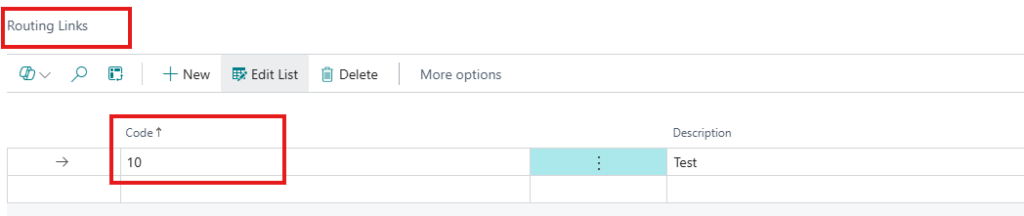
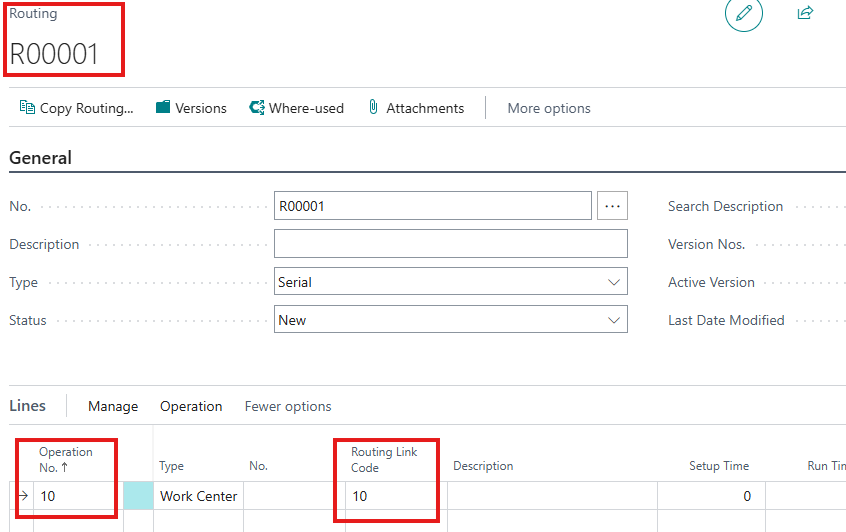
- Assign RLCs to Routing Operations:
- Open the Routing card for the finished good.
- Ensure the routing's status is Under Development to allow editing.
- On each routing line (operation) where specific materials will be consumed, select the appropriate code in the Routing Link Code field. For example, assign RLC
20to Operation No. 20. - Certify the routing when you are finished.
- Assign RLCs to BOM Components:
- Open the Production BOM for the finished good.
- Ensure the BOM's status is Under Development.
- For each component line, go to the Routing Link Code field and select the code that corresponds to the operation where that component is used. For example, if the "Engine Assembly" is used in operation 20, you would select RLC
20for that component line. - Certify the BOM when complete.
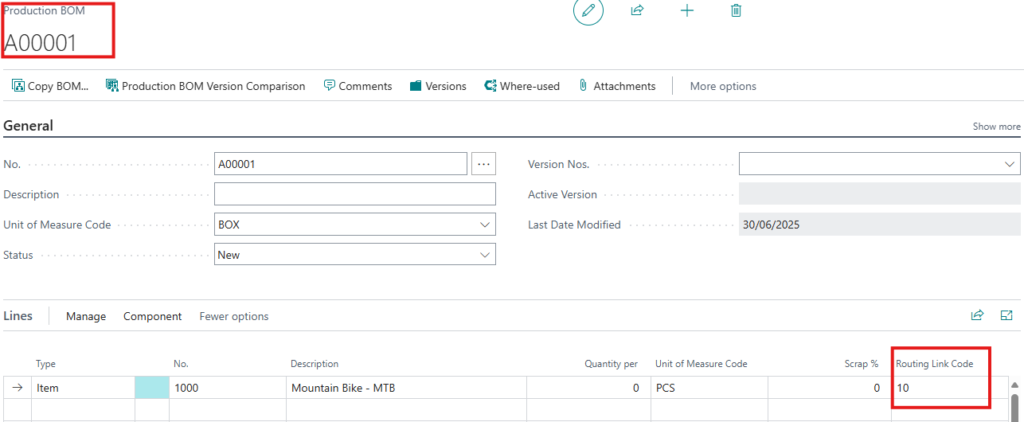
With this setup, when a new production order is created and refreshed, the system establishes these links. If the "Engine Assembly" component is set to Backward flushing and linked to operation 20, its consumption will not be posted until output is recorded against operation 20, perfectly timing the inventory transaction to the physical process.
Advanced Scenarios & Best Practices for Real-World Manufacturing
The true power of Business Central's flushing system is realized when you move beyond the basics and apply these methods to solve complex, real-world manufacturing challenges. This involves combining methods, handling tracked items, and integrating with warehouse processes.
A Hybrid Strategy: Mixing Flushing Methods in a Single Production Order
You are not limited to a single flushing method per production order. In fact, the most effective strategy is often a hybrid approach, where you apply the most appropriate method to each individual component within the same Bill of Materials. This allows you to balance control, automation, and efficiency based on the characteristics of each material.
Consider a practical example of assembling a complex piece of machinery:
- Nuts, Bolts, and Washers: These are low-cost, high-volume, and predictable. Set their flushing method to Backward. Their cost and consumption can be automatically calculated based on the final number of machines produced without needing manual tracking.
- Engine Block: This is a high-value, critical component with a unique serial number. Set its flushing method to Manual. This forces an operator to explicitly record the consumption of the specific engine block by its serial number, ensuring maximum control and traceability.
- Chassis and Housing: These are large components needed early in the assembly process but not immediately. Set their flushing method to Forward and use a Routing Link Code to tie them to the first assembly operation (e.g., Operation 10). This ensures they are consumed from inventory as soon as assembly begins, but not before.
This mixed approach provides the best of all worlds: automation for low-risk items and precise control for high-risk ones.
Flushing with Item Tracking: The Definitive Guide to Lots and Serial Numbers
A significant point of confusion for many Business Central users is how to use automatic flushing methods with items that require lot or serial number tracking. It is a common misconception that this is not possible and that all tracked items must use Manual flushing.
The truth is more nuanced: you can absolutely use automatic flushing with tracked items. The critical detail to understand is that while Business Central's automatic flushing process will consume a pre-selected lot or serial number, it will not automatically select one for you from available inventory. The system needs to be told which specific tracked item to consume. Attempting to backward flush a tracked item without this pre-assignment will result in an error or a prompt for manual selection when you try to finish the production order, defeating the purpose of automation.
The correct, semi-automated workflow is as follows:
- Create and Release the Production Order: The process begins as usual. The components, including the lot/serial tracked item, appear on the production order.
- Navigate to Prod. Order Components: From the released production order, go to the Prod. Order Components page.
- Pre-Assign the Item Tracking Information: This is the essential step. Locate the component line for your tracked item. From the line menu, select Line > Item Tracking Lines.
- Select the Specific Lot/Serial Number: On the Item Tracking Lines page, you can now select the exact Lot No. or Serial No. that will be physically used in production. This action reserves the specific item and links it to the production order component line.
- Trigger the Automatic Flush: Now, proceed with the production process. When the automatic flushing trigger occurs (e.g., changing the order status to
Finishedfor a component withBackwardflushing), the system will see that a specific lot/serial number has already been assigned. It will then automatically post the consumption of that exact tracked item without any further user interaction or errors.
Integrating Flushing with Warehouse Operations: Pick+Forward and Pick+Backward
For businesses using Business Central's more advanced warehouse management features (directed put-away and pick), flushing methods are tightly integrated into the physical movement of goods. To manage this, Business Central provides specialized flushing methods: Pick + Forward and Pick + Backward.
The process flow for these integrated methods is as follows:
- A released production order creates a demand for components.
- For components with a
Pick +flushing method, the system generates a Warehouse Pick document. Components with standardForwardorBackwardflushing are assumed to be available at the production line (e.g., in an Open Shop Floor Bin) and do not generate a pick document. - A warehouse employee receives the pick instruction, picks the specified components from their storage bins, and physically moves them to a designated production supply bin, often called the
To-Production Bin. - The employee registers the pick, confirming the movement in the system.
- Later, when the automatic flushing trigger occurs (order release for
Pick + Forwardor order finish forPick + Backward), the system automatically consumes the components from that specificTo-Production Bin.
This ensures that the system's inventory transactions perfectly mirror the physical flow of materials from the main warehouse to the production floor.
It is also important to note a key feature update in Business Central 2025 Wave 1: the introduction of a Pick+Manual method and the ability to use the standard Manual method without requiring a mandatory warehouse pick. This provides even greater flexibility for handling components that are stored on the shop floor but still require manual consumption posting due to variable quantities or item tracking needs.
The Financial Ripple Effect: How Flushing Impacts Costing and WIP
The choice of flushing method extends far beyond the shop floor; it has direct and significant consequences for your company's financial reporting. This makes the flushing strategy relevant not just to production managers but also to controllers, accountants, and CFOs. The method you choose determines the precise timing of the accounting entry that debits the Work-in-Process (WIP) account and credits the Inventory account.
This timing is critical because WIP is an asset on your balance sheet. The value of your WIP inventory can impact financial analysis, lending covenants, and period-end reporting.
Here is how each flushing method affects your general ledger:
- Forward Flushing: When a production order is released, the full cost of all forward-flushed materials is immediately transferred from your raw material inventory accounts to your WIP accounts. This provides an early and clear view of the costs committed to production. However, it can temporarily overstate the value of your WIP if there are significant delays between releasing the order and starting production.
- Backward Flushing: With this method, material costs remain in your raw material inventory accounts for the entire duration of the production process. The cost is only transferred to WIP when the production order is marked as
Finished. This can understate the true value of your WIP throughout the production cycle, but it ensures the final cost posted is based on the actual quantity of goods produced, which can be more accurate. - Manual Flushing: This method gives your finance and production teams the most precise control over the timing of cost recognition. The cost of materials moves to WIP only at the exact moment the Consumption Journal is posted. This allows for daily or even real-time updates to WIP value, reflecting the actual progress on the shop floor.
Understanding these financial implications is crucial for aligning your operational processes with your financial reporting objectives.
Troubleshooting Common Flushing Issues in Business Central
Even with a well-designed strategy, issues can arise. This section provides a practical, problem-solving guide to the most common flushing-related errors and problems encountered by users.
The following checklist can help you diagnose and resolve issues quickly.
| Symptom / Error Message | Potential Cause(s) | How to Fix |
|---|---|---|
| Automatic flushing did not occur when expected. | 1. The Flushing Method on the Item Card is set incorrectly (e.g., set to Manual). 2. The Production Order was not refreshed after being created or changed. 3. For operation-based flushing, Routing Link Codes (RLCs) are missing or misconfigured. | 1. Verify the Flushing Method on the Item Card and the Prod. Order Component line. 2. On the production order, use the Refresh Production Order action. 3. Check that RLCs are correctly assigned on both the Routing and the Production BOM. |
| "Insufficient Quantity" error during an automatic flush. | The system tried to consume an item that is not available in inventory at the specified location/bin. | 1. Check the Inventory Availability for the component item. 2. Review your inventory planning tools (e.g., Planning Worksheet) to prevent future shortages. 3. Ensure warehouse movements have been completed if using warehouse picks. |
| "You must specify a Lot No." or "Serial No. must be specified." | The component is an item-tracked item, and no specific lot/serial number was pre-assigned before the automatic flush was triggered. | Follow the semi-automated workflow: Navigate to the Prod. Order Components page, open Item Tracking Lines, and assign the specific Lot/Serial No. before changing the order status to trigger the flush. |
| Consumption is posted from the wrong warehouse bin. | 1. For warehouse-integrated flushing (Pick +), the To-Production Bin Code may be incorrect. 2. For standard flushing, the default bin for the component or work center is misconfigured. | 1. Verify the To-Production Bin Code on the Location Card. 2. Check the bin code specified on the Work Center or Machine Center card where the operation takes place. |
| Duplicate material deductions appear in Item Ledger Entries. | A user may have posted a manual consumption from the journal in addition to an automatic flush that occurred. | Review the Item Ledger Entries for the production order to identify the source of each consumption entry. Educate users on how the automatic flushing methods work to prevent manual overrides. |
Final Thoughts on Flushing Methods in Business Central and FAQ
Choosing the right flushing method in Microsoft Business Central can improve production efficiency, inventory accuracy, and workflow automation.
| Flushing Method | Best For |
|---|---|
| Manual Flushing | Custom production, high control |
| Forward Flushing | Repetitive manufacturing, automation |
| Backward Flushing | Simple, predictable workflows |
By understanding and configuring flushing methods properly, businesses can reduce errors, optimize production tracking, and enhance overall efficiency.
You can also read Microsoft dynamics 365 Business central guide on Flushing Methods in Business central!
Which flushing method is best for high-volume production?
Forward Flushing is generally the best choice for high-volume production. Its ability to automate material deduction at the start of the process significantly reduces manual effort and is highly efficient for standardized workflows where material usage is predictable.
How can I track inventory consumption in Business Central?
Inventory consumption can be tracked in Item Ledger Entries. Navigate to:
Released Production Order → Item Ledger Entries to view material usage details.
Can I change the flushing method after a production order has been created?
No. The flushing method for a component is copied to the production order at the time of its creation (or when it is refreshed). You cannot change it on an active Released Production Order. To use a different method, you must change the setting on the Item Card or Stockkeeping Unit Card before creating new production orders.
Why is my flushing method not working in Business Central?
If your flushing method is not applying correctly:
✅Check if the flushing method is set on the Item Card.
✅Ensure the Production Order is refreshed after making changes.
✅Verify that the correct Routing Link Codes are assigned (for operation-based flushing).
How does flushing impact cost calculations?
Flushing methods directly impact inventory valuation and cost calculations by determining when the value of a component is moved from a raw material inventory account to a Work-in-Process (WIP) account. This timing affects period-end financial statements and the perceived value of ongoing production.
What are the key differences between flushing methods and manual inventory adjustments?
✅Flushing Methods → Automatically deduct materials based on pre-set conditions (start, during, or end of production).
✅Manual Inventory Adjustments → Require users to manually enter consumption details, increasing workload and potential for errors.
Can flushing methods be customized for different production processes?
Yes, flushing methods can be customized per item, BOM (Bill of Materials), or operation by assigning specific Routing Link Codes. This allows different materials to be deducted at different stages of production based on business requirements.
What happens if materials are not available when flushing occurs?
If materials are not available at the time of Forward or Backward Flushing, Business Central may post a negative inventory adjustment, or production may halt depending on stock settings. It’s recommended to use inventory planning tools to avoid such issues.
Can I use different flushing methods for different components in the same production order?
Yes, different components within a Production BOM can have different flushing methods. For example:
✅Low-cost, frequently used materials can use Backward Flushing.
✅Expensive, critical components can use Manual Flushing for precise tracking.
What are the risks of using the wrong flushing method?
Using the wrong flushing method can result in:
✅Inaccurate inventory records, leading to material shortages.
✅Incorrect cost allocations, affecting financial reports.
✅Production delays, if materials are not deducted at the right time.
Does flushing work with serialized or lot-tracked items?
Yes, flushing methods in Business Central support serialized and lot-tracked items. However, users must ensure that serial numbers or lot details are correctly assigned to materials before consumption to maintain accurate tracking.
How can I automate material consumption while maintaining manual control?
A hybrid approach can be used:
✅Set frequently used components to Forward or Backward Flushing.
✅Use Manual Flushing for high-value or fluctuating materials.
✅Combine flushing methods within a Production BOM for better control.
Can flushing be used in subcontracting or outsourced manufacturing?
Yes, but subcontracted operations require additional setup in Business Central. Materials consumed in subcontracting processes can use Manual Flushing to ensure proper tracking and reconciliation when receiving finished goods from vendors.
What reports can I use to track flushed materials in Business Central?
To monitor flushed materials, use:
✅Item Ledger Entries → Tracks all material deductions.
✅Production Order Reports → Shows consumed materials per order.
✅Inventory Valuation Reports → Helps reconcile cost impact of flushed materials.
How does Business Central prevent duplicate material deductions with flushing methods?
Business Central ensures materials are only deducted once per Production Order based on the selected flushing method. If manual adjustments are made, users must verify records in Item Ledger Entries to avoid duplication.
How does flushing impact work-in-progress (WIP) calculations?
Flushing methods directly affect WIP accounting by determining when materials are deducted:
✅Forward Flushing → Materials appear as consumed early in WIP calculations.
✅Backward Flushing → Materials remain in inventory until production is completed.
✅Manual Flushing → WIP updates only when consumption is manually posted.
