
Finance and invoicing teams are all too familiar with the daily grind of manual data entry, the persistent risk of regulatory non-compliance, and the time-consuming process of chasing down payments. These challenges don't just drain productivity; they hinder financial visibility and slow business growth. The Dynamics 365 Business Central 2025 Wave 1 release marks a pivotal moment for businesses looking to overcome these obstacles, introducing a suite of powerful e-document enhancements that fundamentally transform financial workflows.
This is not just another incremental update. These new features represent a major leap forward in intelligent automation, providing advanced tools for Dynamics 365 Business Central e-invoicing with unprecedented efficiency and control.
This definitive guide provides an exhaustive look at these new capabilities. We will go beyond a simple feature list to explore the strategic implications for your business. We will cover not only what's new in the Business Central 2025 Wave 1 updates but also provide practical, step-by-step guidance on how to implement these features and why they are critical for modernizing your financial operations. From hyper-automating workflows with a Business Central Power Automate integration to ensuring bulletproof compliance and recovering from common errors, this article is the most comprehensive resource you will find on Dynamics 365 Business Central e-invoicing.
Key E-Document Enhancements Include:
- Integrating e-Documents with Power Automate & APIs to automate sharing of invoices and receipts.
- Simultaneous email and service sending of e-documents to deliver invoices faster.
- Payment status tracking within the E-Document framework for clear financial visibility.
- On-demand e-Document generation from posted sales invoices to fix missing documents.
- Recovery of deleted purchase documents using e-document logs to maintain accuracy.
Each of these enhancements is designed for end users of Business Central, especially finance and invoicing teams, to streamline electronic invoicing and ensure regulatory compliance.
Table of Contents
A Quick Overview of Dynamics 365 Business Central e-invoicing Enhancement
| New Feature | User-Centric Benefit | Tangible Business Impact |
|---|---|---|
| Power Automate & API Integration | Automate any invoicing workflow you can imagine. | Reduce manual data entry by 90%, accelerate approval cycles, and connect invoicing to your entire tech stack. |
| Simultaneous Service & Email Sending | Ensure invoices are delivered instantly, every time. | Improve customer satisfaction, meet strict e-invoicing mandates (like PEPPOL), and reduce payment delays. |
| Integrated Payment Tracking | See exactly which e-invoices are paid, partially paid, or overdue, right in BC. | Enhance cash flow forecasting, reduce time spent on collections, and simplify financial reconciliation. |
| On-Demand E-Document Creation | Instantly fix compliance gaps by creating e-documents for past invoices. | Eliminate risks of non-compliance fines and ensure a complete, auditable document trail for every transaction. |
| Purchase Document Recovery | Recover accidentally deleted purchase invoices in one click. | Maintain data integrity, prevent operational disruptions in the procure-to-pay cycle, and improve audit readiness. |
What is E-Invoicing in Business Central? A Foundation for Automation
Before diving into the new features, it's crucial to understand what e-invoicing means in the context of Dynamics 365 Business Central. It's a concept that extends far beyond simply emailing a PDF. True Dynamics 365 Business Central e-invoicing involves the exchange of invoice data in a structured, machine-readable format, typically XML, between the seller's and buyer's financial systems without manual intervention. This structured data exchange is the foundation for genuine automation and a successful Business Central e-document setup.
The 2025 Wave 1 updates are built upon the modern E-Documents framework, a core application within Business Central designed for robust, scalable, and globally compliant electronic document management. This framework represents a significant strategic evolution for Microsoft. It moves away from older, rigid integrations, such as the now-deprecated Tradeshift service, toward a flexible, API-driven model.
This new architecture allows Business Central to connect with a wide array of external services and regulatory platforms through certified Access Point Providers. This is particularly important for complying with international standards and networks like PEPPOL, making Peppol Business Central integration a reality for businesses of all sizes. By leveraging the E-Documents framework, businesses can ensure their invoicing processes are not only efficient but also compliant with the ever-changing landscape of local and international regulations.
The 5 Game-Changing E-Document Features in the 2025 Wave 1 Release
The latest release introduces five cornerstone enhancements that collectively empower finance teams to automate processes, improve accuracy, and gain deeper financial insights. Each feature addresses a specific challenge in the invoicing lifecycle.
1. Unleash Hyper-Automation with Power Automate and API Integration
The most transformative update is the deep, native integration of the E-Documents module with Power Automate and external APIs. This enhancement moves Business Central from a system of record to the central hub of an automated financial ecosystem. This powerful Business Central Power Automate integration means Business Central can now act as a trigger or an action within any Power Automate workflow, enabling limitless customization and true Business Central AP automation.
Key Benefits:
- Seamless Integration: The built-in connectors and exposed APIs allow for real-time exchange of invoice and credit memo data with any other application in your tech stack, from CRM systems to custom data warehouses.
- Complex Workflow Automation: You can design multi-step workflows that orchestrate tasks across different services. For example, an incoming e-invoice can automatically trigger a complex approval process in Microsoft Teams, post the approved invoice in Business Central, and archive the original document in a SharePoint library.
- Enhanced Connectivity: The system now supports sharing e-documents as BLOB files (Binary Large Objects). This allows you to send the exact digital format of an invoice file, such as a specific XML schema, through various channels beyond the standard connectors, ensuring technical compliance.
- Automated Document Receipt: External systems can now push incoming electronic purchase invoices directly into Business Central's e-document tables via API, completely eliminating the need for manual uploads or email monitoring.
Real-World Scenario: Imagine your [email protected] inbox receives a PDF invoice from a supplier. A Power Automate flow is triggered instantly. It uses AI Builder to scan the PDF and extract key data like the vendor name, invoice number, line items, and total amount. The flow then creates a purchase invoice draft in Business Central, matches it to the correct vendor, and sends an approval request to the department head via Microsoft Teams. Once approved with a single click in Teams, the flow automatically posts the invoice in Business Central, ready for the next payment run. This entire process, a prime example of Business Central AP automation, happens in minutes, without a single manual keystroke.
2. Streamline Communications: Send E-Documents via Service and Email Simultaneously
In today's regulatory environment, businesses often face a dual requirement: submitting a compliant e-invoice to a government portal or partner network (a "service") while also sending a user-friendly copy to the customer's accounts payable department for their records (an "email"). Previously, this was a two-step manual process. The 2025 update elegantly solves this, allowing users to send e-document via email and service Business Central in a single, automated action.
Key Benefits:
- Guaranteed Compliance and Communication: This feature ensures you meet strict legal mandates for e-invoicing submission while maintaining clear and efficient communication with your customers.
- Reduced Manual Effort: By configuring a Document Sending Profile, you can automate both actions to occur with a single click when an invoice is posted. This eliminates the risk of forgetting to send one copy and reduces administrative overhead.
- Flexible Configuration: You can tailor sending profiles for different customers or customer groups. For example, one profile might send via "Service and Email," another "Service Only," and a third "Email Only," providing complete control over the communication workflow.
Real-World Scenario: A company operating in Germany must send B2B invoices in the XRechnung format through the PEPPOL network. At the same time, their customer's AP team, who may not have direct access to the PEPPOL system, prefers to receive a PDF copy for their internal review process. Using the new sending profile, the finance user posts a sales invoice. The system automatically generates the compliant XRechnung XML file and transmits it to their PEPPOL Access Point provider. Simultaneously, it attaches a standard PDF version of the same invoice to an email and sends it directly to the customer's contact email address. Compliance is met, and the customer is kept informed, all in one seamless, automated step.
3. Gain Real-Time Financial Clarity with Integrated Payment Tracking
One of the biggest challenges in accounts receivable is the lack of visibility into the payment status of an invoice after it has been sent. The latest update addresses this head-on by making it easy to track e-invoice payment status Business Central directly within the E-Document framework.
Key Benefits:
- Clear Payment Status: Every e-document record can now display a clear, at-a-glance status: Paid, Partially Paid, or Unpaid. This allows your finance team to instantly identify which invoices require follow-up, dramatically improving financial visibility and collections efficiency.
- Automated Reconciliation: This is not just a manually updated field. The system is designed for automated data exchange. When a customer pays an e-invoice through a connected portal or bank, the payment information, including dates and amounts, can be automatically received and used to update the e-document's status in Business Central.
- Detailed Audit Trail: The system captures crucial payment details directly on the e-document record, including the collection date, the total amount paid (including VAT), and the base amount. This creates a robust and easily auditable trail for reporting and compliance purposes.
Real-World Scenario: A finance manager wants to review the status of outstanding receivables at the end of the week. Instead of cross-referencing bank statements with the sales ledger, they simply open the E-Documents list page. They can immediately filter for all documents with an "Unpaid" status that are past their due date. For an invoice marked "Partially Paid," they can drill down to see the exact amount and date of the payment received. This ability to track e-invoice payment status Business Central in real-time allows for more accurate cash flow forecasting and enables the collections team to focus their efforts precisely where they are needed most.
4. Guarantee Compliance: Create Missing E-Documents from Posted Invoices
Even with a perfectly configured system, errors can occur. A temporary misconfiguration or user error might lead to a sales invoice being posted without the required e-document being generated. In jurisdictions with mandatory e-invoicing, this can create a serious compliance risk. The 2025 update provides a critical safety net, answering the question of how to create e-document from posted sales invoice BC.
Key Benefits:
- On-Demand Document Generation: If you discover a posted sales invoice is missing its corresponding e-document, you can now manually generate it after the fact. This ensures you can always meet your legal obligations without having to cancel and repost transactions.
- Quick Verification and Auditability: The "Open E-Document" action on the Posted Sales Invoice page serves as a quick check. If an e-document exists, it opens it. If not, it informs the user, allowing for immediate remediation. This ensures a complete and auditable trail for every sales transaction.
- Risk Mitigation: This feature is essential for business continuity and compliance. It mitigates the risk of fines and penalties associated with incomplete e-invoicing records, turning a potential crisis into a simple administrative task.
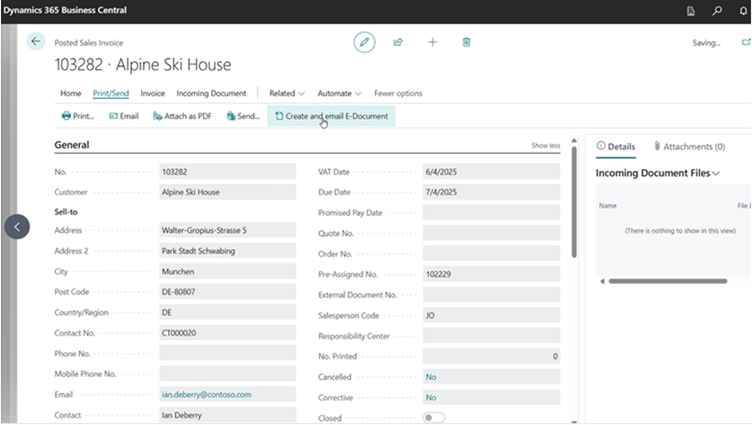
Real-World Scenario: An audit reveals that a batch of invoices from last month was posted while the e-document service was incorrectly configured, meaning no electronic versions were created. Instead of panicking, the finance team navigates to the Posted Sales Invoices list. For each affected invoice, they use the action "Create and Email E-Document." Business Central uses the data from the already posted invoice to generate the compliant e-document and sends it through the now-correctly-configured service. Within minutes, the compliance gap is closed, and a complete audit trail is established.
5. Eliminate Errors: Recover Deleted Purchase Documents with E-Document Logs
Human error is inevitable. An incoming purchase invoice might be accidentally deleted by a user after it has been received and linked to an e-document record but before it has been posted. In the past, this could mean frantic calls to the supplier and tedious manual data re-entry. The new feature to recover deleted purchase invoice Business Central makes this a non-issue.
The system's design treats the e-document record as an immutable source of truth. Because the electronic version was received and logged, it contains all the necessary data to reconstruct the transactional document it represents. This principle underpins the platform's robust error-recovery capabilities.
Key Benefits:
- One-Click Document Recovery: From the E-Documents List page, you can use the "Reprocess Document" action on the relevant entry. The system uses the data stored in the e-document log to instantly recreate the deleted purchase invoice or credit memo, complete with all original amounts, references, and line items.
- Preservation of Data Integrity: The recreated document is not an approximation. Business Central uses the original e-document data and your defined mapping rules (such as G/L or item mapping) to ensure the restored document is an exact match to the one that was deleted.
- Maintained Business Continuity: This feature prevents a simple mistake from halting the entire procure-to-pay process. The purchasing workflow can continue without disruption, and financial records remain accurate and complete.
Real-World Scenario: An accounts payable clerk is processing incoming supplier invoices. They receive an e-invoice for a large purchase order, and the system creates the corresponding e-document and purchase invoice draft. While cleaning up their document queue, they accidentally delete the unposted purchase invoice. Instead of starting over, the AP manager goes to the E-Document Logs, finds the entry from that supplier, and clicks "Reprocess Document." Instantly, the purchase invoice reappears in the system, fully populated and ready for processing, as if it were never deleted. This ability to recover deleted purchase invoice Business Central is a critical safeguard for data integrity.
Practical Implementation: A How-To Guide for the New Features
Understanding the features is the first step. The real value comes from implementing them effectively. This section provides practical, step-by-step guidance on how to leverage these new capabilities.
Step-by-Step: Configuring a Power Automate Flow for Incoming Invoices
This example outlines a powerful workflow that automates the processing of supplier invoices received as email attachments. This directly targets Business Central AP automation and leverages the new Business Central Power Automate integration capabilities.
These capabilities give finance teams greater flexibility. Instead of copying data by hand, you can use APIs and flows to share invoices and receipts across your ecosystem, improving accessibility and accuracy.
- Set the Trigger in Power Automate:
- Start by creating a new "Automated cloud flow" in Power Automate.
- For the trigger, search for and select "When a new email arrives (V3)" from the Office 365 Outlook connector.
- Configure the trigger to monitor a specific inbox, such as
[email protected]. Set filters to only trigger if the email has attachments and perhaps a specific subject line.
- Extract Invoice Data with AI Builder:
- Add a new step and search for the AI Builder connector.
- Select the action "Extract information from invoices".
- In the "Invoice file" field, select "Attachments Content" from the dynamic content of the trigger step. This tells AI Builder to process the file attached to the incoming email. please refer to microsoft guide Use the invoice processing prebuilt model in Power Automate.
- Create Purchase Invoice in Business Central:
- Add another step and search for the Dynamics 365 Business Central connector.
- Choose the action "Create a record (V3)".
- Select your Business Central environment and company.
- For the API category, choose
businessCentral/v2.0. - For the Table name, select
purchaseInvoices. - Now, map the fields. For the "Vendor Number" field in Business Central, you can use the "Vendor Name" output from the AI Builder step (you may need an additional step to look up the vendor number from the name). For "Invoice No.," map the "Invoice ID" output from AI Builder. Map other fields like "Total Amount Including Tax" and line item details accordingly.
- Initiate an Approval Process:
- Add a new step and search for the Approvals connector.
- Select the action "Start and wait for an approval."
- Choose an approval type, such as "Approve/Reject - First to respond."
- In the "Assigned To" field, enter the email address of the manager responsible for approving invoices. In the "Details" field, include dynamic content from the AI Builder step, such as Vendor Name, Invoice Number, and Amount, so the approver has all necessary information.
- Post and Archive the Document:
- Add a final step with a "Condition" control.
- If the "Outcome" of the approval step is "Approve," add two actions.
- Action 1 (Business Central): Use the
purchaseInvoices_postaction to post the invoice. - Action 2 (SharePoint): Use the "Create file" action to save the original email attachment to a specific SharePoint document library for long-term archival.
- Action 1 (Business Central): Use the
GET IN TOUCH
Want To Configuring Power Automate For E-Invoicing
Connecting to the E-Invoicing Ecosystem (PEPPOL & Service Providers)
A common point of confusion is how Business Central connects to government portals and customer systems. It does not connect directly; it uses a standardized intermediary layer, which is a core concept of networks like PEPPOL. A successful Peppol Business Central integration relies on this architecture.
The architecture works as follows:
- Your Business Central Tenant: This is where you create your sales invoice.
- E-Document Service Configuration: Within Business Central, you configure the E-Documents Service. This is where you will enter the API credentials and endpoint URLs provided by your chosen service provider.
- Access Point (AP) Provider: You must partner with a certified Access Point provider (e.g., Unimaze, Elian Solutions, B2Brouter). These providers are authorized to send and receive documents on the PEPPOL network. They handle the technical complexities of document formats, transmission protocols, and security.
- The PEPPOL Network: This is the secure, international network that routes the e-document from your AP provider to your customer's AP provider.
- Recipient's System: The customer's AP provider delivers the e-document directly into their ERP or accounting system.
To enable this, you must subscribe to a service from a certified provider. They will give you the necessary credentials to configure in Business Central. This setup ensures that your Peppol Business Central process is secure, compliant, and interoperable with thousands of other companies on the network.
Send e-Documents via Email and Service Simultaneously
Business Central’s updated document sending profiles let you deliver invoices and credit memos through multiple channels in one go. You can now configure the system to send an e-document by email and also publish it to an external e-invoicing service at the same time.
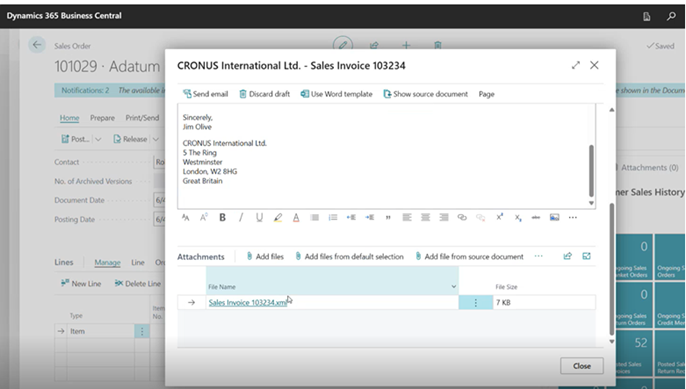
For example, when posting a sales invoice, the system can generate the e-document and attach it to the customer email and send it to a local E-Document service. This dual-sending feature reduces duplication of effort and ensures all parties get the invoice promptly. Key features and benefits include:
- Automated Workflows: The system can automatically trigger e-document creation and sending whenever you post a sales order, invoice, or credit memo. No extra clicks are needed to deliver the e-invoice.
- Configurable Sending Options: In the Document Sending Profile, you can select the sending model (Email, Service, or both). This lets you tailor each profile: some customers may need email copies, others require submission to a partner network, or both.
- Simultaneous Delivery: With one click, e-documents are emailed to recipients and posted to an external service or portal. This speeds up communication and reduces manual email steps.
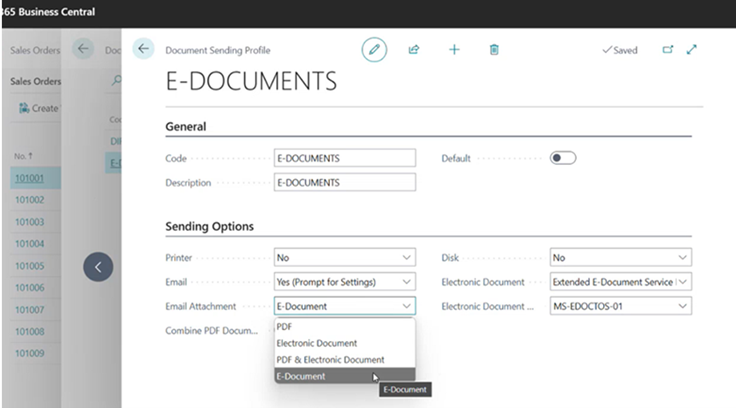
In the screenshot above, the E-Documents Sending Profile shows how you can choose 'E-Document' as the email attachment and select an electronic document service code. This lets the system handle customer emails and service-based sending together. Ultimately, these improvements mean invoices get where they need to be faster, giving you more control and fewer manual steps in the document-sharing process.
You can also send Vendor Remittance Advices via Emails to vendors.
Track Payments within the E-Document Framework
The latest update adds payment-tracking fields to the e-document setup, helping you keep tabs on which invoices are paid. Now, after sending an electronic invoice, Business Central can automatically record whether it’s fully paid, partially paid, or still unpaid. This makes it easier to reconcile and follow up. Main benefits include:
- Clear Payment Status: Each e-document record can now show a status (Paid/Partially Paid/Unpaid). Your team can instantly see which invoices have cleared and which need attention, improving financial visibility.
- Seamless Data Exchange: When a customer pays an e-invoice, the payment details (dates, amounts, VAT) are automatically exchanged between accounts payable (for vendors) and accounts receivable (for customers) as configured. This eliminates manual entry of payment info.
- Detailed Payment Insights: The system captures key payment details on the e-document: the collection date, the total amount paid (including VAT), and the base amount/VAT at payment time. This audit trail helps with reporting and compliance.
With these enhancements, invoice processing is more automated. Your finance team can rely on Business Central to update the e-document ledger with payment information, reducing the need to chase down payment confirmation and ensuring books stay accurate.
Troubleshooting Guide: Solving Common E-Document Issues
With powerful automation comes the need for clear diagnostic tools. Business Central provides a comprehensive logging system to help you quickly identify and resolve any issues with your e-document workflows.
Diagnosing Failures with the E-Document Log
The E-Document Log is your central hub for troubleshooting. When an e-document fails to send or an error occurs, this should be the first place you look.
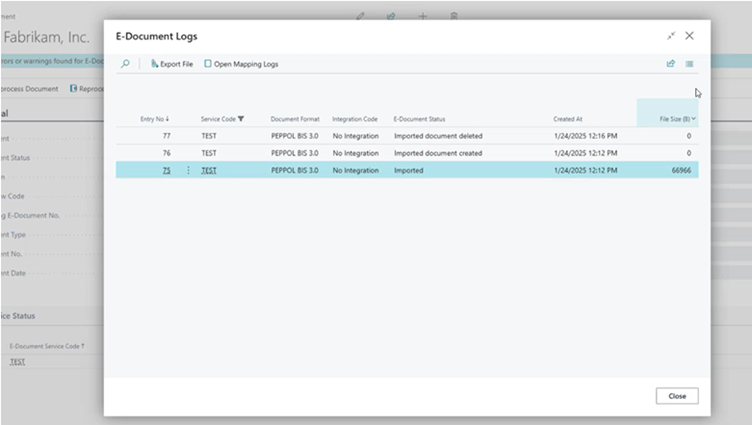
To access it, navigate to the Posted Sales Invoice in question, select the E-Document action, and then Open E-Document. On the E-Documents page, you will find the logs.
Interpreting Key Statuses:
- Processed: The initial status after a sales invoice is posted, indicating the e-document record has been created.
- Exported: The system has successfully generated the XML file for the e-document. You can select this log entry and use the "Export File" action to download and manually review the XML if needed.
- Sent: The e-document has been successfully transmitted to your configured service provider (Access Point).
- Sending Error / Error: This indicates a problem. The Electronic Document Status on the main page will show "Error." The Error and Warnings FastTab will contain messages explaining the cause. This could be anything from incorrect credentials to an invalid document format rejected by the service provider.
For deep-level diagnostics, select the log entry and open the Communication Logs. This shows the raw API request sent to the service and the response received, which is invaluable for pinpointing the exact point of failure.
Manually Recreating a Missing or Deleted E-Document
This checklist provides clear, actionable steps for recovering from the two most common document-related errors.
Scenario 1: A Sales E-Document was never created due to a setup issue.
- Identify the Issue: Navigate to the specific Posted Sales Invoice. Click the "Open E-Document" action. If no document was created, the system will notify you.
- Correct the Setup: Review your E-Documents Core setup and the relevant Document Sending Profile to fix the underlying configuration error.
- Regenerate the Document: Once the setup is corrected, return to the Posted Sales Invoice and use the action "Create New E-Document." The system will now generate the document based on the corrected rules.
Scenario 2: An unposted Purchase Invoice was accidentally deleted.
- Navigate to the Log: Go to the E-Documents list page (accessible from the Accountant Role Center or by searching).
- Locate the Entry: Find the e-document entry corresponding to the deleted purchase invoice. You can identify it by vendor, date, or amount.
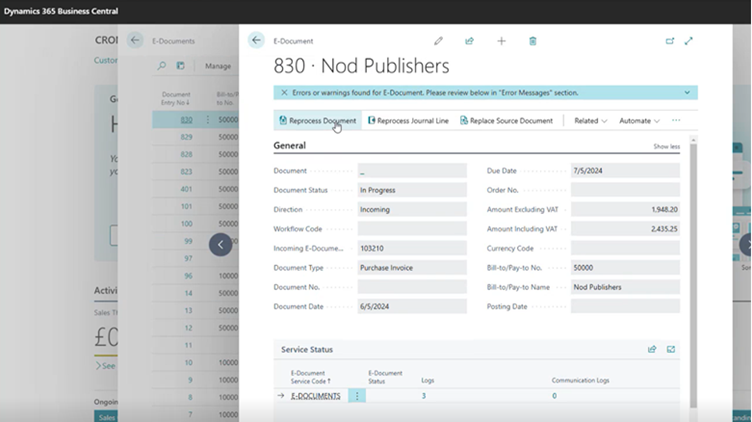
- Reprocess the Document: Select the correct line and run the "Reprocess Document" action from the ribbon.
- Verify: Business Central will use the immutable data from the e-document log to perfectly recreate the purchase invoice. You can then navigate to Purchase Invoices to find the restored document, ready for processing.
The Business Impact: Translating Features into Financial Efficiency
The 2025 Wave 1 e-document enhancements are more than just technical features; they are catalysts for significant business transformation. By adopting these tools, organizations can translate technological advancements into tangible financial and operational gains.
- Accelerated Cash Flow: Automating invoice delivery and integrating payment tracking directly reduces the invoice-to-cash cycle. When invoices are delivered instantly and correctly, and payment statuses are visible in real-time, the average Days Sales Outstanding (DSO) can be significantly lowered, improving cash flow and working capital.
- Drastic Reduction in Operational Costs: AP and AR automation eliminates thousands of hours of manual work. The time spent keying in invoice data, correcting errors, chasing approvals, and manually reconciling payments is reclaimed, allowing finance teams to focus on strategic activities like financial analysis and planning instead of administrative tasks.
- Strengthened Compliance and Reduced Risk: In an era of increasing e-invoicing mandates, compliance is not optional. The new framework, with its support for global standards like PEPPOL and its robust error-correction tools, ensures businesses can meet regulatory requirements effortlessly, avoiding costly penalties and reputational damage.
- Enhanced Data-Driven Decision Making: With cleaner, more accurate, and more timely financial data flowing through the system, leaders can make better decisions. Real-time visibility into invoice statuses and payment cycles provides a more accurate picture of the company's financial health, leading to better forecasting and strategic planning.
- Future-Proofing Operations: The flexible, API-first architecture of the E-Documents framework prepares businesses for the future. As new regulations emerge and new technologies become available, this adaptable foundation will allow organizations to integrate and evolve without being locked into a single vendor or technology. It even lays the groundwork for future initiatives like sustainability reporting, where data from purchase documents can be used to track supply chain emissions.
Frequently Asked Questions (FAQ)
What is the difference between the new E-Documents framework and the old way of e-invoicing in Business Central?
The new E-Documents framework is a modern, flexible, and extensible platform designed for global compliance. It replaces older, more rigid integrations like the deprecated Tradeshift service. The new framework is API-driven and supports connections to multiple service providers and formats (like PEPPOL BIS 3, XRechnung, Factura-E), making it far more adaptable to different country-specific requirements.
How do I enable e-invoicing in Dynamics 365 Business Central?
To enable e-invoicing, you need to configure the E-Documents Core setup, assign appropriate document sending profiles, and integrate with supported services or APIs. You can also use Power Automate to connect Business Central with other apps for automated document flow.
Can I send an invoice as both email and e-document in Business Central?
Yes, with the 2025 update, Business Central allows you to send an e-document simultaneously via email and through a connected service. This ensures faster and more reliable delivery to customers and regulatory platforms.
How can I track payments for e-invoices in Business Central?
Dynamics 365 Business Central now includes fields in the e-document framework to track payment status (Paid, Partially Paid, Unpaid). The system can automatically update this based on incoming payments and VAT amounts.
What should I do if an e-document is missing for a posted invoice?
Yes, with the new Reprocess Document feature in the E-Documents module, you can recreate deleted purchase invoices or credit memos directly from the e-document log. This ensures accuracy and continuity in your financial records.
Can I use Power Automate AI Builder to process incoming invoices?
Absolutely. You can create a Power Automate flow that triggers when an email with an invoice attachment arrives. The flow can use the AI Builder "Extract information from invoices" action to read the data from the PDF or image file and then use that data to automatically create a purchase invoice draft in Business Central.
What file formats are supported for sending e-documents?
E-documents in Business Central are typically sent in XML or other regulatory-compliant digital formats, often as BLOB files attached to emails or shared via APIs. The exact format may depend on the country and integration service.
How do I check the status of sent or received e-documents?
You can review the E-Document Log in Business Central, which provides detailed information on sent and received documents, their format, processing status, and linked records.
Are the 2025 e-invoicing features available in all regions?
Feature availability may vary by region based on local e-invoicing regulations. Check Microsoft's official documentation or consult your Business Central partner to confirm support in your country.
Do I need a third-party service provider to use e-invoicing?
Yes, for network-based e-invoicing like PEPPOL, you need to subscribe to a service from a certified Access Point (AP) Provider (e.g., Unimaze, B2Brouter). These providers handle the secure transmission of documents over the network. Business Central integrates with these providers; it does not act as an Access Point itself.
Is Business Central e-invoicing compliant with PEPPOL?
Yes. When configured with a certified PEPPOL Access Point provider, Business Central can send and receive e-invoices that are fully compliant with the PEPPOL network standards, enabling seamless transactions with other companies and government agencies across the globe.
How does Business Central handle e-invoicing for different countries like Italy, Mexico, or Germany?
The E-Documents framework is designed to be localized. Microsoft provides specific formats and workflows for various countries. For example, it supports Factura-E for Spain and XRechnung for Germany. For countries like Italy and Mexico, which previously used different methods, Microsoft is in the process of migrating them to the new, unified E-Documents framework for consistency.
What happens if I accidentally delete a purchase invoice linked to an e-document?
With the 2025 Wave 1 update, you can easily recover it. Navigate to the E-Documents list, find the entry for the deleted invoice, and use the "Reprocess Document" action. The system will use the stored e-document data to perfectly recreate the purchase invoice.
How do I check the status of a sent e-invoice?
Open the related Posted Sales Invoice, go to the E-Document page, and check the E-Document Logs. The logs provide a chronological history of statuses, such as "Exported," "Sent," or "Error," giving you a clear audit trail of the document's journey.
Conclusion and Frequently Asked Questions
The Dynamics 365 Business Central 2025 Wave 1 release is unequivocally a landmark update for financial operations. The enhancements to the E-Documents framework are not merely incremental improvements; they are transformative tools that empower finance teams to move beyond manual, error-prone processes and embrace intelligent, end-to-end automation. By integrating deeply with Power Automate, providing robust error-recovery mechanisms, and ensuring global compliance, Business Central solidifies its position as a leading ERP platform for modern businesses.
Adopting these features will enable organizations to significantly boost productivity, enhance financial visibility, strengthen compliance, and ultimately gain a decisive competitive edge in an increasingly digital world.
Ready to help your clients leverage these powerful new e-invoicing features? Contact our team to discuss partnership opportunities and get the technical resources you need to lead your clients into the future of financial automation. You can learn more about Business central E-doucments invoicing from microsoft guide.
